You know the tags. You can recognize a <div> in your sleep. And yet every job listing wants 'projects', and every tutorial ends before one starts. This page closes that gap: nine small HTML projects, ordered from first-ever-page to genuinely-impressive, each with what it teaches, a stretch goal, and how long it should take.
One rule before you start: build them in that order, but build them badly. Every experienced developer's first portfolio looked like a 2003 website. Volume of finished work beats quality of unfinished ideas — nine ugly finished pages beat one perfect abandoned one.
Project 1 — Tribute page (1 hour)
Pick someone you admire and make them a one-page website: a big heading, a photo, three paragraphs of their story, and a timeline as an ordered list. This is the classic first project because it uses only structure — headings, paragraphs, images, lists, links — with zero styling pressure.
What it teaches: document skeleton, heading hierarchy, <img> with real alt text, and internal anchor links if you add a mini table of contents. Stretch goal: link to an external source for every claim you make.
Project 2 — Recipe card with print styles (1–2 hours)
Mark up your favourite dish: ingredients as an unordered list, steps as an ordered list, a photo, and a 'serves 4' note in a <small> tag. Recipes are perfect practice because their structure is genuinely semantic — screen readers, recipe plugins and search engines all parse them.
What it teaches: semantic lists, tables if you add nutrition facts, and your first taste of <meta> viewport so it looks right on a phone. Stretch goal: add a checkbox next to each ingredient — you will meet the <input> element early.
Project 3 — Personal homepage (2 hours)
One page about you: who you are, what you are learning, three links to things you made, and a way to contact you. This project has a deadline built in — you will actually put it online and share the link, which changes how careful you are.
What it teaches: page architecture (header, main, footer), navigation between sections with anchors, and writing for real visitors instead of an exercise. Stretch goal: make it in an online editor, save a share link, and send it to one friend for feedback.
Project 4 — Product card grid (2–3 hours)
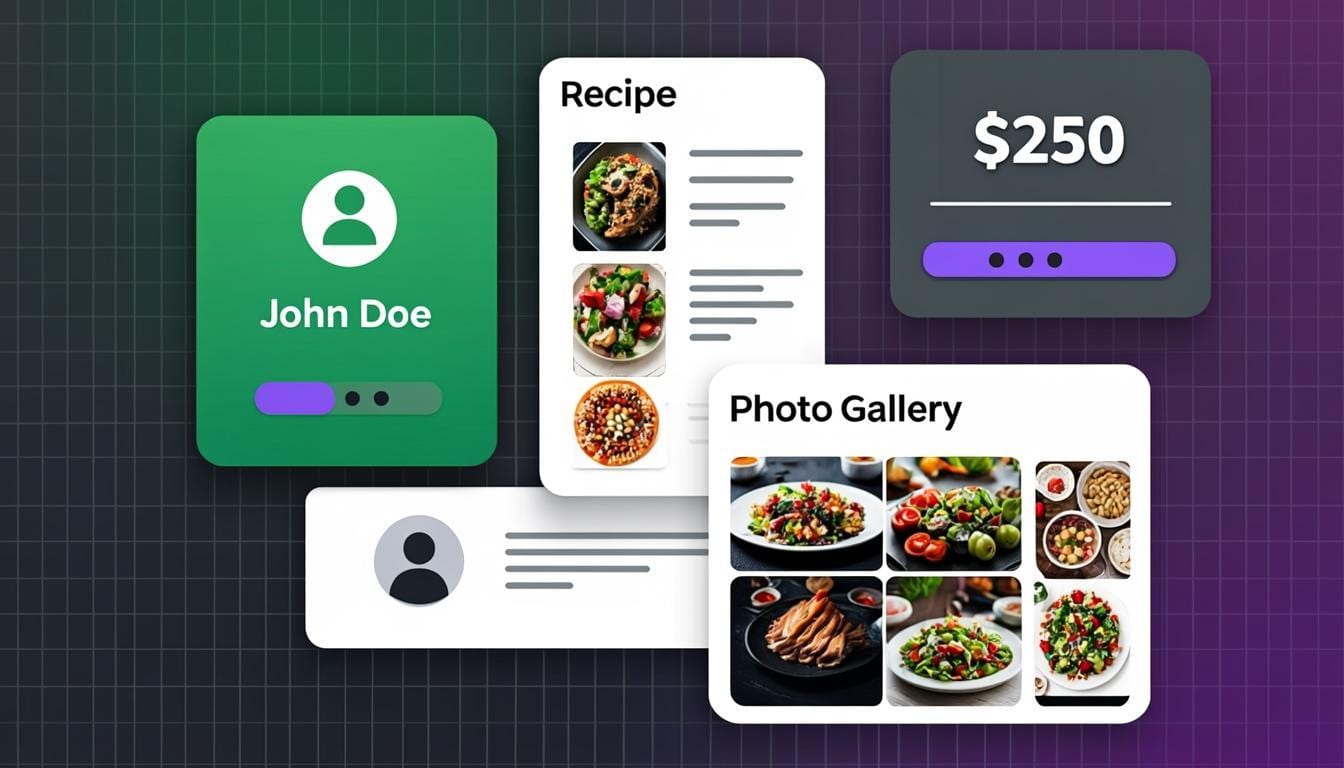
Choose four products you love — sneakers, books, keyboards — and build a card for each: photo, name, one-line description, price, 'Buy' button. Then arrange the four cards in a responsive grid that stacks on phones and sits side by side on wider screens.
What it teaches: the card pattern that powers most of the modern web, plus Flexbox or Grid — the two layout systems you will use for the rest of your career. Stretch goal: hover effect that lifts the card slightly; badge that says 'Sale' on one card.
/* The responsive card grid, one rule to memorize */
.grid {
  display: grid;
  grid-template-columns: repeat(auto-fit, minmax(220px, 1fr));
  gap: 20px;
}
.card {
  border: 1px solid #e4e4e7;
  border-radius: 12px;
  padding: 16px;
}
Project 5 — Landing page for a fake product (3 hours)
Invent something — a study-timer app, a plant subscription — and build its landing page: hero section with a headline and one button, three feature blocks, a row of fake testimonials, and a footer. No real product, no real payment; the layout is the project.
What it teaches: visual hierarchy — guiding a visitor's eye from headline to button — and reuse: your third feature block should be a copy of the first with different text, and you will feel why classes exist. Stretch goal: an FAQ section using <details> and <summary>, which work with zero JavaScript.
Project 6 — Contact form (that does nothing) (1–2 hours)
Build a full contact form: name, email, topic dropdown, message textarea, and a submit button. It will not actually send anything — that needs a server — but building clean, accessible form markup is a skill in itself and half of every real website is forms.
What it teaches: every input type, <label> tied to inputs with for/id (this one interviewers ask about), placeholder versus label, and the required attribute for basic validation. Stretch goal: try submitting empty and watch the browser block it — validation for free.
Project 7 — Documentation page (3 hours)
Pick something you know — three Git commands, your editor's shortcuts — and write its documentation page: a fixed sidebar with links, and content sections on the right that the sidebar scrolls to. Documentation sites are 90% of what developers read, and building one demystifies them.
What it teaches: navigation that stays put (position: sticky), anchor links that jump to sections, <code> and <pre> for showing code itself — your first taste of nesting structure inside structure. Stretch goal: highlight the sidebar link of the section currently on screen.
Project 8 — Photo gallery with captions (2 hours)
Take six to nine photos (free sources are fine) and build a gallery: a responsive grid of thumbnails, and a caption that appears under each on hover — or always, on touch screens, which teaches you why hover is not enough.
What it teaches: images at real-world sizes, object-fit for keeping crops tidy, and the difference between a layout you designed for a desktop and one that survives a phone. Stretch goal: click a photo to open it bigger — your first modal, achievable with <dialog> and one line of JavaScript.
Project 9 — Mini quiz page (your first logic) (3–4 hours)
Five multiple-choice questions as radio buttons, a Submit button, and a score that appears at the end. This project deliberately crosses the HTML/CSS border into JavaScript — the smallest possible step, because the logic is ten lines and the interface is what you already know.
What it teaches: reading input values, simple if-statements, and updating the page in response to a click — the entire mental model of interactivity in one afternoon. Stretch goal: show the correct answers in green after submitting.
How to actually finish all nine
Two practical tips from every developer who has done this. First, keep the tool friction at zero: an online editor with auto-save and a live preview means a spare ten minutes is enough for real progress — no installs, no setup, work saved in the browser between sessions. Second, finish ugly: when a project works, move to the next one and let stretch goals pull you back later.
When the nine are done, you will not need a list anymore — rebuilding a page you admire becomes the natural next step, and that habit is self-fueling. Open the editor, start project 1, and give it its first hour today; the other eight get easier from there.
Try everything from this article live
The CodeLive Studio editor runs the examples above with a one-second live preview — no account, no install.
Open the free editor