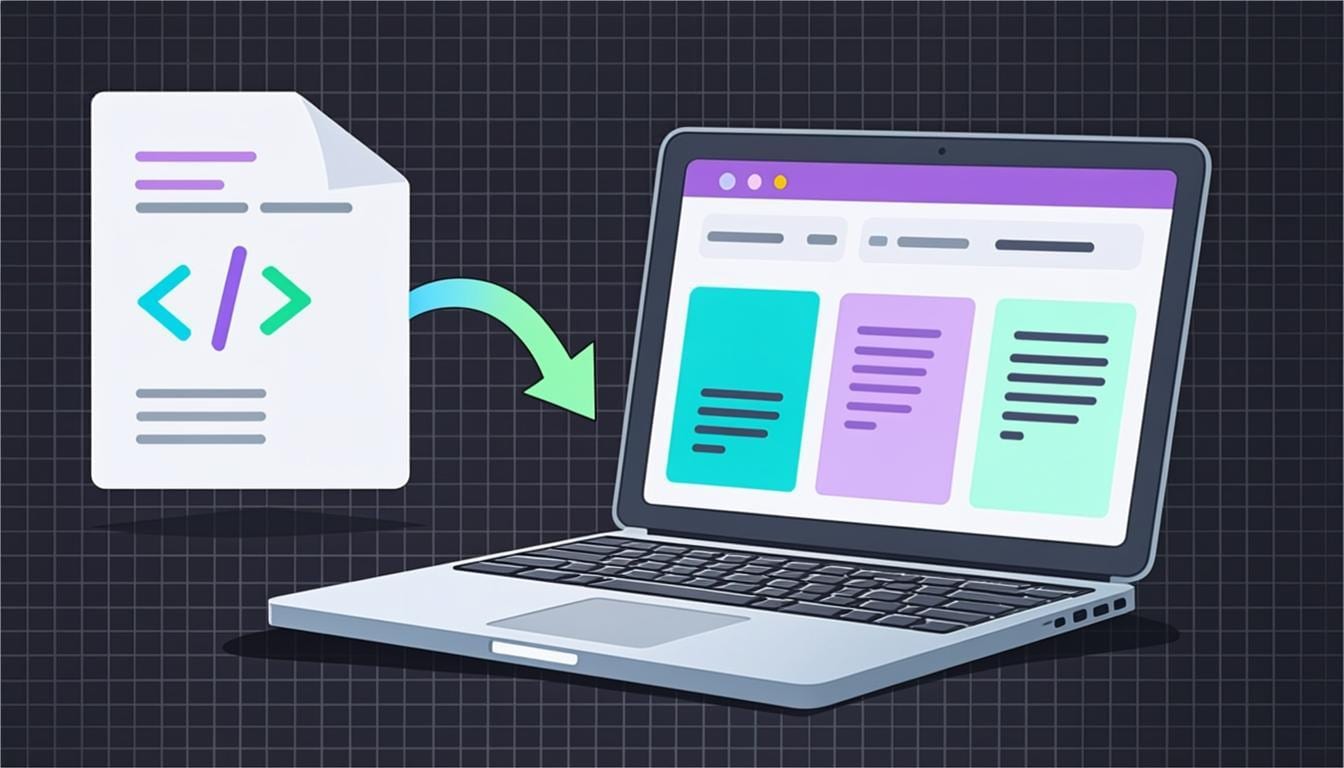
Someone sends you an .html file on WhatsApp or email, or you are learning to code on the only device you own — a phone. Every tutorial you find assumes a laptop with VS Code installed. This guide is the missing mobile version: three real ways to open, run and even edit HTML on Android or iPhone, what each is good for, and why some saved pages look broken when you open them from your file manager.
The good news: a modern phone browser is a perfectly capable HTML engine. The rendering is identical to desktop Chrome or Safari — the only thing missing is a convenient workflow, and that is exactly what we fix below.
Method 1: open it straight from your file manager
On Android, open your Files app, find the .html file (usually in Downloads) and tap it. Android asks which browser to open it with — choose Chrome — and the page renders. On iPhone it is similar: tap the file in the Files app and iOS Quick Look shows a preview of the page.
For a quick look at a simple page, this is all you need. But the method has real limits that surprise people: you are viewing a frozen copy. Nothing is editable, JavaScript runs with restrictions (Quick Look in particular is a static snapshot), and — the big one — a page saved as a single file can lose its styling entirely, which is the next section.
Why a saved page can look broken on your phone
Here is the most common complaint: 'I opened the HTML on my phone and it shows plain unstyled text.' The cause is almost never your phone. A web page is usually three files — index.html, style.css and script.js — and the HTML connects to the others with relative links like <link rel="stylesheet" href="style.css">. When you send only the .html file, those links point at nothing, so the browser renders bare markup.
Two fixes. If you control how the file is produced, export a single self-contained file with the CSS and JavaScript inlined — CodeLive Studio's Download menu does exactly this with its single-HTML option, and such a file opens perfectly on any phone. If you only received the files, ask for the whole folder in a ZIP, or move to method 2 and run the code in an editor instead of the file manager.
Method 2 (recommended): run it in a browser editor with live preview
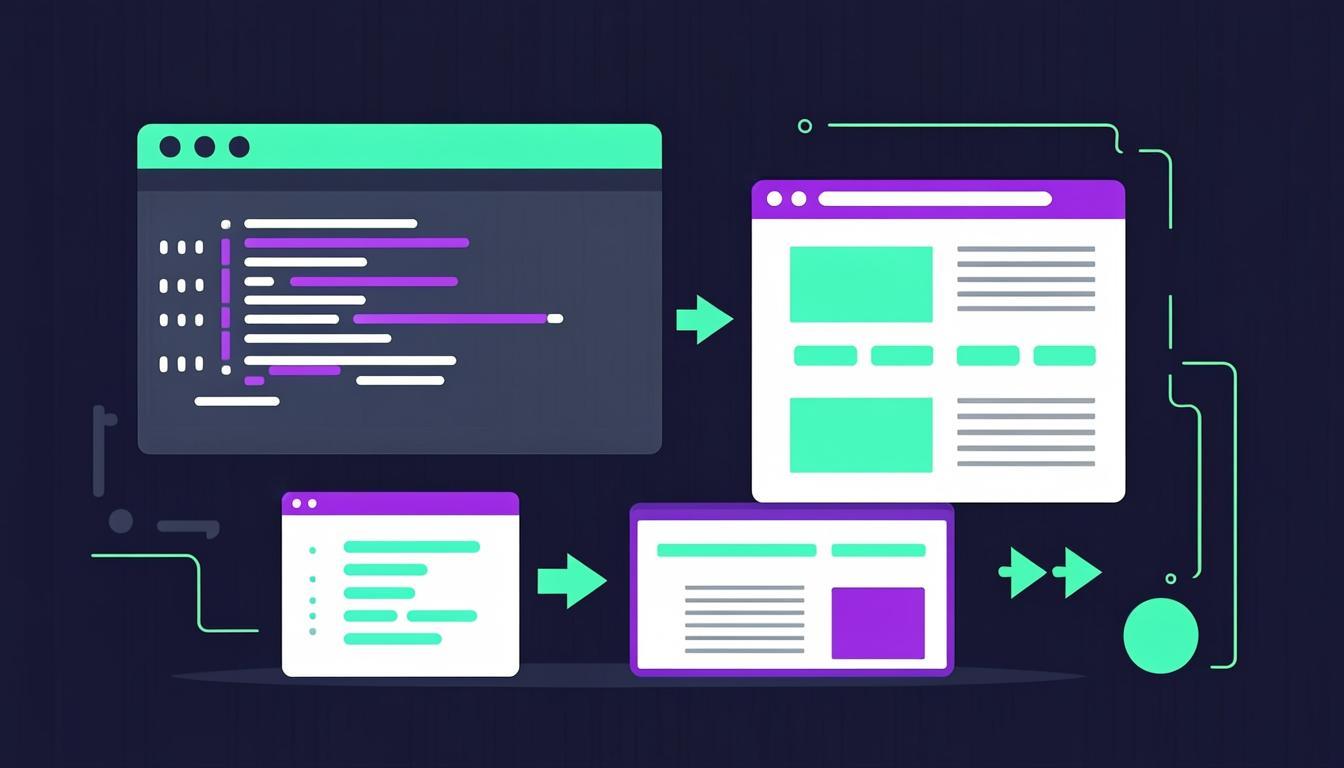
Instead of opening a dead file, open your code in an online editor and let the page run the way it was meant to — live, editable and interactive. On a phone this is strictly better than the file manager: you can change the code and watch the result update, which is the entire point of learning HTML.
The workflow is identical on Android and iPhone because the browser does all the work:
- Open the CodeLive Studio editor in Chrome or Safari — no app, no account
- Paste your HTML into the HTML tab (and the CSS/JS into their tabs if you have them)
- The live preview re-renders about a second after you stop typing
- On phones, a floating preview bubble keeps the result visible while you type — no tab switching
- Fix, tweak, experiment; your work auto-saves to the device as you go
Method 3: write HTML directly on the phone
Maybe you do not have a file at all — you just want to code, and the phone is what you have. That works too. Open the same editor, replace the starter markup, and type. The on-screen keyboard is the weak point of mobile coding, and autocomplete is what compensates: CodeLive Studio completes tag names, auto-closes brackets and expands Emmet abbreviations, so building a list is 'ul>li*3' plus Tab instead of thirty individual symbols.
Set honest expectations: you will not write a production app on a 6-inch screen. But lessons, exercises, small pages and quick experiments? Genuinely comfortable — especially with the editor's device-size switcher, which doubles as a reality check for how your page behaves at phone width.
Sharing the result from a phone
The file-manager method makes sharing clunky — you end up emailing files around. The editor route makes it one tap: press Save and you get a permanent link that opens your exact project for anyone. Send it in the same WhatsApp conversation the file came from. No attachments, no 'it looks different on my phone', no account needed on the receiving end.
And when the project is finished, Download gives you either the single self-contained .html file (opens anywhere, styled, including on phones) or a ZIP with the three separate files, ready for a laptop project later.
Which method should you use?
Quick view of a file someone sent, and you only need to read it: file manager. Viewing a page that looks broken: it is missing its CSS — get the full folder or a self-contained file. Learning, editing, testing or building on a phone: browser editor, every time. Sharing something you built: save a link instead of sending files.
All three methods run on the device you already own. If you have two minutes right now, open the free editor on your phone, paste the last HTML snippet you remember, and watch the preview react while you type — that loop is the whole experience this article is about.
Try everything from this article live
The CodeLive Studio editor runs the examples above with a one-second live preview — no account, no install.
Open the free editor