Python has always had a setup tax: download the interpreter, configure the PATH, pick an editor, hope the installer did everything right. On a school or office computer you often cannot do any of that at all. Browser-based Python removes the entire ritual — the language runs inside the browser tab itself, next to your code, and it is real Python, not a simulation.
This guide explains how that is possible, walks you through a first program in under a minute, and — just as importantly — tells you where browser Python stops making sense, so you know exactly which situations it fits and which ones need a real install.
How Python runs in a browser (the WebAssembly trick)
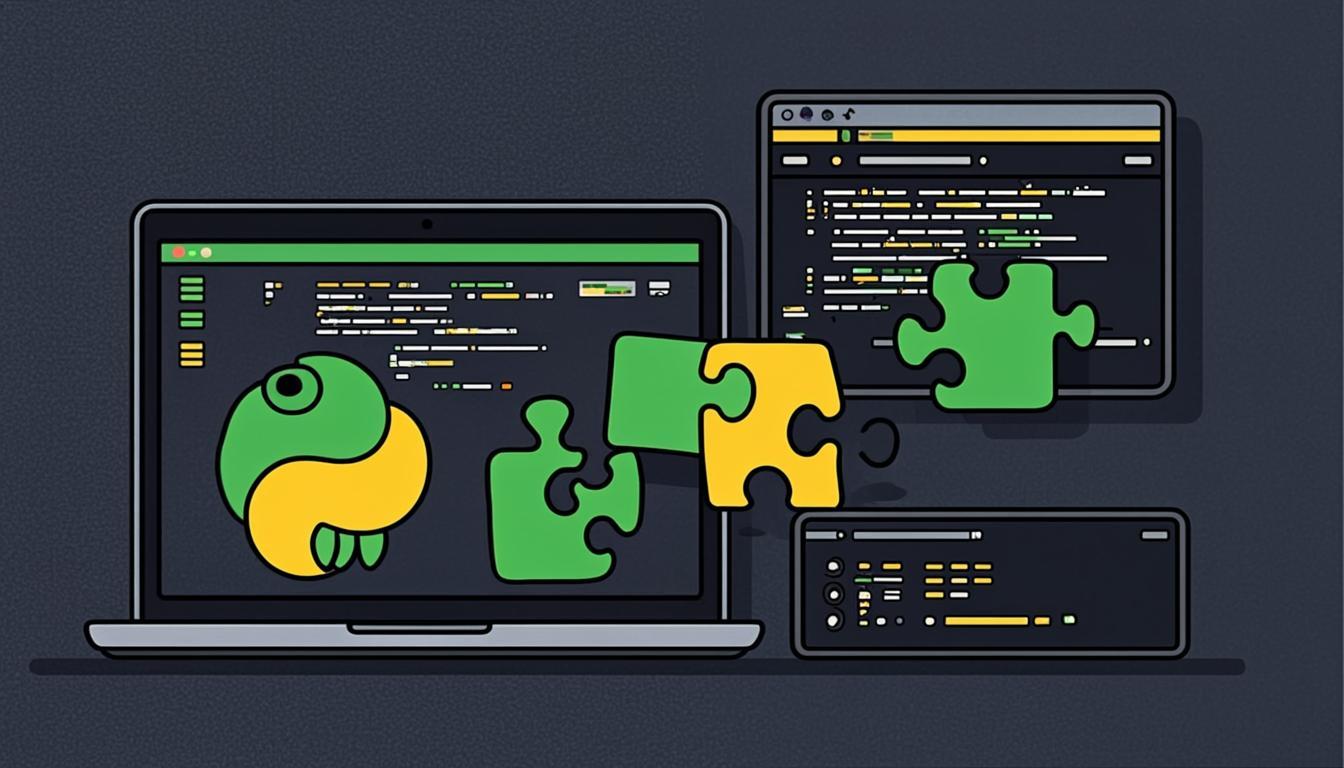
The technology doing the work is WebAssembly, a standard that lets browsers execute compiled code at near-native speed. Projects like Pyodide take the actual CPython interpreter — the same program your computer runs when you type python — and compile it to WebAssembly. The browser loads it like any other web asset and then executes your Python code in a sandbox inside the tab.
That word 'actual' is the part worth remembering. This is not Python syntax being translated to JavaScript, and it is not a lookalike language. It is CPython — the reference implementation of Python — running in a new environment. Your syntax, the standard library's behavior, the error messages, the way ints and strings behave: it is the real thing.
The same trick powers other in-browser tools you may already use. Our SQL playground runs real SQLite compiled to WebAssembly, and the Python playground runs CPython the same way — two full engines living inside browser tabs.
Run your first Python program in the browser
Open the free CodeLive Studio Python playground and follow along — the whole thing takes under a minute the first time:
- Open the page and wait a moment for the Python engine to load (about 13 MB, one time; after that it is cached and the page even works offline).
- Type a small program into the editor — the sample below is a good start.
- Press Run. Output appears in the console area below, along with how long the run took.
name = input("What is your name? ")
print(f"Hello, {name}!")

for i in range(1, 4):
print(f"{i} x 7 = {i * 7}")If that ran, you have just executed genuine Python on a machine that never had Python installed. Notice what you did not do: no installer, no account, no project folder. That zero-friction loop is the entire point — you can test an idea the second you have it.
What browser Python is genuinely good for
A browser playground is not a compromise version of Python; for certain jobs it is simply the right tool:
- Learning and practice — loops, string methods, dictionaries, small algorithms — because instant feedback keeps momentum and nothing interrupts a ten-minute session.
- Locked-down machines — school and office computers where installing software is impossible; if the browser can open a website, it can run Python.
- Quick testing — checking a regex, a slice, a datetime calculation or a comprehension before pasting it into a real project (for patterns, [the regex tester](/regex-tester) highlights every match and group live).
- Interview prep — solving practice problems with the same stdin/stdout style many coding tests use, with stdout, stderr and timing visible.
- Sharing — a working snippet plus output can be shown to a friend or classmate by opening a page, not by sending setup instructions.
The honest limits (and when to install Python instead)
Every 'run Python online' guide that skips this section is setting you up for frustration, so here is the full picture. Browser Python executes in a sandbox with no access to your operating system, and packages that contain compiled C or Fortran code — the scientific stack like numpy, pandas or matplotlib — generally cannot load. Pure-Python packages can often be fetched by a companion tool called micropip, but the heavy ones are out, at least for now.
The other practical limits: the first page load downloads the interpreter (roughly 13 MB, once), long-running or memory-hungry jobs are happier on a real machine, and GUI toolkits like tkinter cannot open windows inside a sandboxed tab.
None of this is hidden to make the tool look better — the playground itself states it on the page. The rule of thumb: browser Python for learning, practice and quick tests; a local install for data science, GUIs, and anything that runs for hours; and server-based compilers for the middle ground where you need packages but not a full setup.
Browser Python vs online compilers vs local install
Three ways to run Python, three different trade-offs. The privacy row is the one most people never think to ask about — it is the difference between code that stays on your device and code that is uploaded to someone else's server to be executed.
| Browser (WebAssembly) | Server-based compiler | Local install | |
|---|---|---|---|
| Setup | None — open a page | None — open a page | Minutes + maintenance |
| Runs where | Your device, in the tab | A remote server | Your device |
| Your code | Never leaves the device | Uploaded to the service | Never leaves the device |
| Packages | Pure-Python only (mostly) | Broad, service-dependent | Everything on PyPI |
| Offline | Yes, after first load | No | Yes |
| Best for | Learning, practice, quick tests | Package-heavy experiments | Real projects, data science |
Who browser Python is perfect for
Students, first-timers and anyone who has ever been blocked by 'you do not have permission to install this software'. Teachers use browser playgrounds to hand a whole class a working Python environment from one link. Developers keep one open in a tab the way other people keep a calculator — for the moment a question like 'what does this split() do again?' needs a thirty-second answer.
If that describes you, the fastest start is the one above: open the Python playground, run the seven-line program, and change it until it breaks. If you want to understand what happens under the hood when 'compiling Python' is mentioned — bytecode, and why the term is a little different for browser engines — the online Python compiler guide goes one level deeper.
Is Python in the browser real Python?
Yes. It is CPython — the reference implementation — compiled to WebAssembly and run inside the tab. Identical syntax and standard-library behavior, identical error messages. The differences are environmental, not linguistic: no operating-system access and no compiled packages, which is why the honest-limits section above matters.
Can I pip install packages in a browser playground?
Sometimes. A browser-compatible companion called micropip can install pure-Python packages (code that ships as plain Python and does not need compiled extensions). Packages that depend on compiled code — the numerical and scientific stack especially — generally cannot load. Check whether the playground you use lists its supported packages instead of assuming desktop behavior.
Does browser Python upload my code anywhere?
In a browser-based tool like ours, no: the interpreter runs on your device, and the code is executed inside your own tab — the same privacy model that makes client-side tools safe for experiments you would not paste into an unknown website. Server-based online compilers are the opposite: your code must be sent to their servers to run, which is fine for homework and careless for anything containing credentials or private data.
Try everything from this article live
The CodeLive Studio editor runs the examples above with a one-second live preview no account, no install.
Open the free editorKeep reading
- What is HTML, CSS and JavaScript?· New to web code entirely? Start with the three languages every page is built from.
- How to run JavaScript in your browser· The other language that already runs in every tab — and how to start with it today.
- Online Python compiler, explained· What 'compiling Python' really means, bytecode included, for browser and server engines.