Open any website — this one, your bank, a game, a news site — and underneath the design you will find the same three languages: HTML, CSS and JavaScript. They are not competing options; each has one job, and a page only works when all three do theirs. This guide explains what each language actually is, shows you real code for each, and ends with the fastest way to try them yourself, in your browser, with nothing to install.
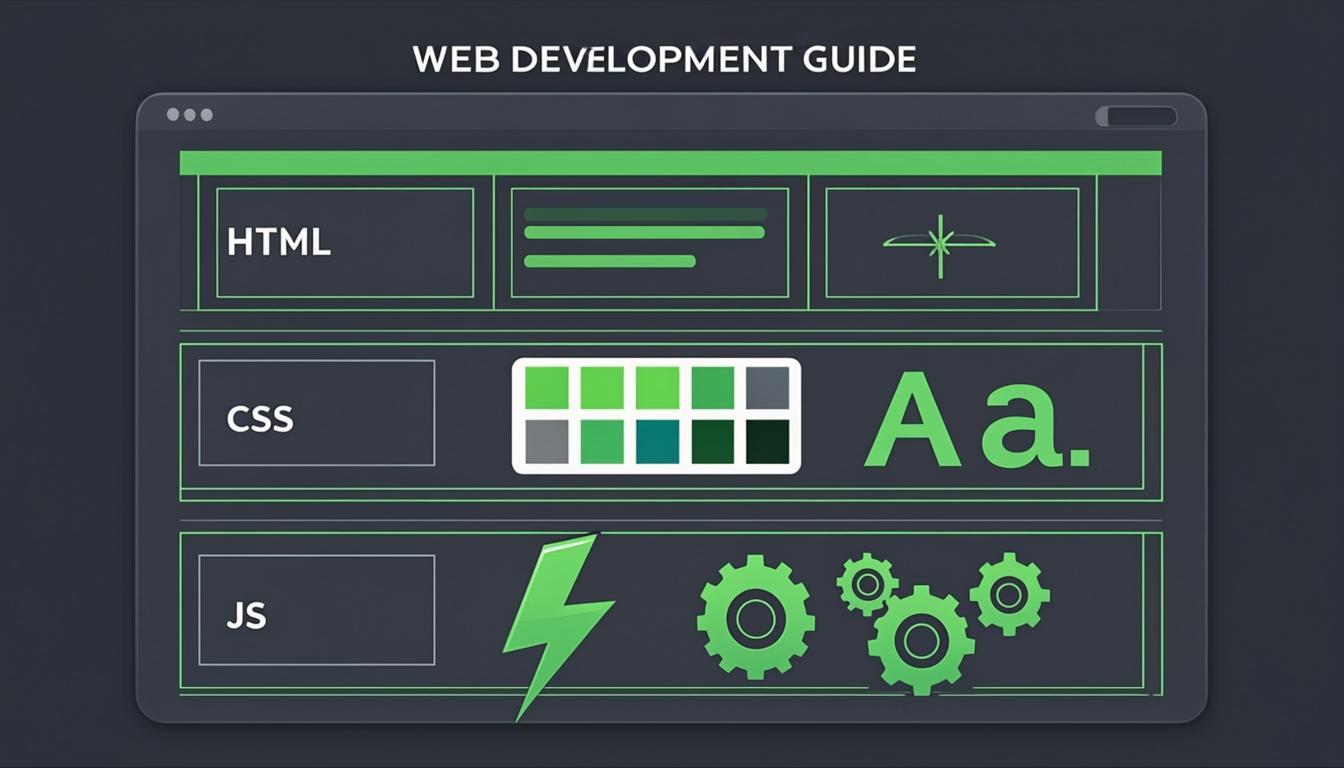
A quick way to hold the whole idea in your head before we start: a website is like a house. HTML puts up the frame — the walls, doors and windows. CSS paints it and arranges the furniture. JavaScript wires the electricity, so lights turn on when you flip a switch. Keep that picture; the rest of this guide just fills in the details.
What is HTML?
HTML stands for HyperText Markup Language, and it has been the web's structure language since the early 1990s. It is a markup language, not a programming language: it does not calculate anything or make decisions. It labels content. When you mark a piece of text as a heading, a paragraph, an image or a link, you are writing HTML.
The core unit is the element, written as a tag. Most elements come in pairs — an opening tag and a closing tag — with the content in between:
<p>This text is inside a paragraph.</p>
<a href="https://example.com">This is a link</a>
<img src="photo.jpg" alt="A photo">Every page also starts from the same skeleton, so you will see this shape in every tutorial and codebase on the web:
<!DOCTYPE html>
<html>
  <head>
    <title>My first page</title>
  </head>
  <body>
    <h1>Hello, world</h1>
    <p>My first paragraph.</p>
  </body>
</html>What HTML decides: the page's structure and meaning. Which text is a heading, where an image goes, what a link points to, which items form a list. Get the HTML right and the page already works — readable, navigable, usable — before any styling exists. That is why every web course, and every one of the practice guides on this blog, starts here.
What is CSS?
CSS — short for Cascading Style Sheets — is the language that describes how HTML should look. Where HTML says 'this is a heading', CSS says 'headings on this page are dark green, 32 pixels tall, with breathing room below them'. Without CSS, every page on the web would render in the same default font on a white background.
CSS works in rules. A rule names the elements you want to style (the selector), then lists the changes (declarations):
h1 {
  color: #0f766e;
  font-size: 32px;
}
p {
  line-height: 1.6;
  margin-bottom: 12px;
}The 'cascading' part describes how conflicts resolve: when several rules touch the same element, the browser follows a priority order — more specific selectors and later rules win. That one word explains most of the CSS surprises beginners run into, like styling a paragraph and wondering why a more specific rule overrode it.
What CSS decides: colors, fonts, spacing, layout (where things sit on the page), and how the page adapts to different screen sizes — the reason a site is usable on both a laptop and a phone. It can also add motion: hover effects, transitions and animations, all without a line of JavaScript.
What is JavaScript?
JavaScript is the only one of the three that is a full programming language. It runs inside the browser, remembers values, makes decisions, and reacts to what the user does. Whenever a page updates without reloading — a counter ticks up, a menu opens, a form flags a mistyped email — JavaScript did that.
A taste of it. This code counts button clicks and changes the message when you reach ten:
let clicks = 0;
const button = document.querySelector("#count");
const label = document.querySelector("#total");

button.addEventListener("click", () => {
  clicks = clicks + 1;
  label.textContent = clicks + " clicks";
  if (clicks === 10) {
    label.textContent = "Ten! Time to ship it.";
  }
});Three ideas are hiding in those ten lines: a variable (clicks remembers a value between clicks), an event (the click listener runs your code at exactly the right moment), and the DOM — the browser's live map of the page, which JavaScript can read and rewrite while you watch. Learn those three ideas and you understand what JavaScript is for. A JavaScript playground with a captured console is the fastest place to experiment with them, because errors show up as you type instead of silently failing.
How the three languages work together
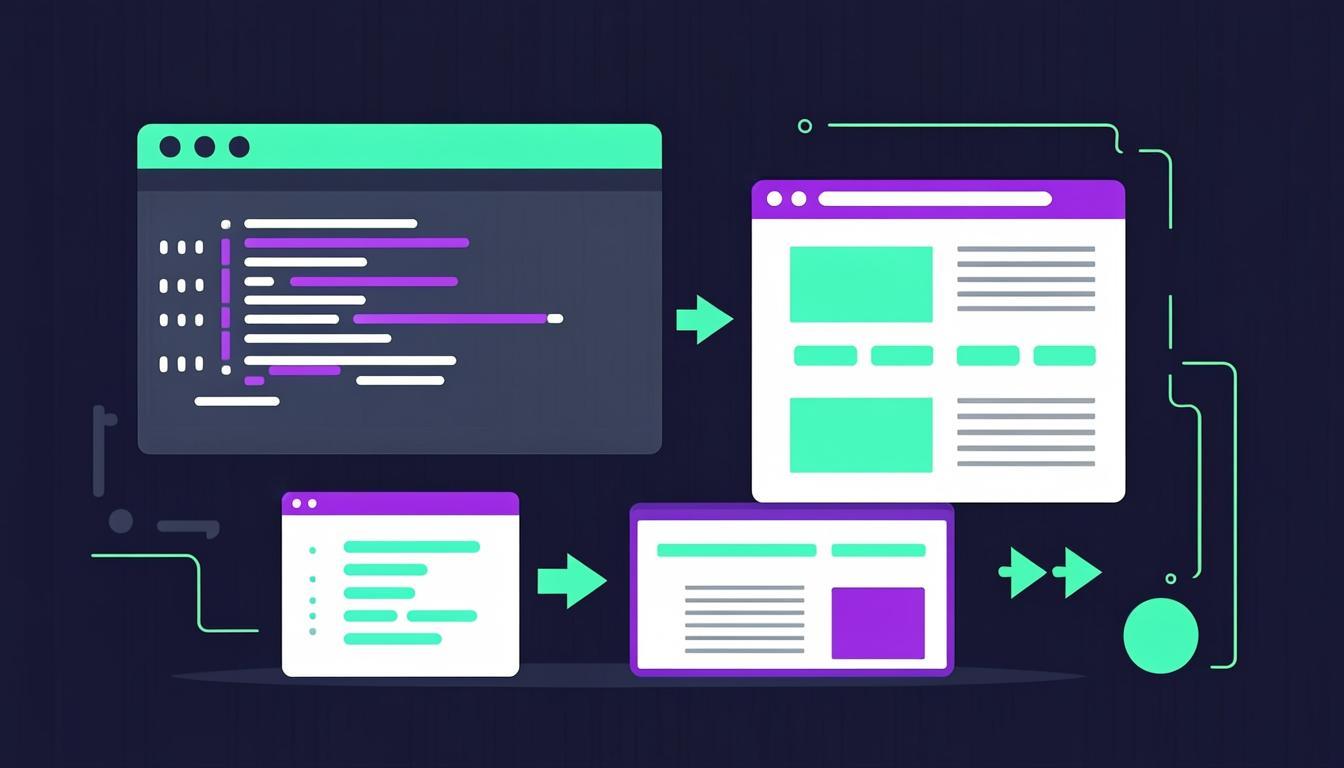
A browser assembles a page in a rough order: it reads the HTML and builds the structure, applies the CSS to style that structure, then runs the JavaScript, which can now change both. The three languages never mix — each lives in its own file or block — but they cooperate on the same page.
Take a search box on any site. HTML creates the input field and the button. CSS gives them size, borders and spacing, and lines them up neatly. JavaScript listens for the click, fetches matching results, and inserts them into the page. Remove any one of the three and something visible breaks.
This gives you a debugging scan you can reuse forever. Content in the wrong place, or text that should be a link but is not? Look at the HTML. Correct content that looks off? CSS. The right elements but nothing happens on click? JavaScript. Most beginner bugs resolve in seconds once you route them to the right language — and if you want the differences spelled out side by side, the blog's comparison guide does exactly that.
Do you need to install anything to start?
No — and this is the part beginners are usually most relieved to hear. All three languages run in the browser you already have, so the only tool you need beyond that is an editor. A free online editor like the CodeLive Studio playground gives you three tabs — HTML, CSS, JavaScript — and a live preview that updates as you type, with no install and no account.
For a first session, a practical loop looks like this:
- Paste the HTML skeleton above into the HTML tab and watch it render in the preview.
- Style it in the CSS tab — change the heading color, add spacing — and see the preview update within about a second.
- Make something react in the JavaScript tab: a click, a counter, a color switch.
- When the page looks broken, drop it into the [HTML tester](/html-tester-online) to spot unclosed tags fast.
Working this way has one quiet advantage beyond convenience: nothing leaves your machine. Your own browser renders the code, which makes an online editor a safe sandbox for experiments you would not yet trust on a real project. When a snippet misbehaves, the worst case is a weird preview, not a broken computer.
Which one should you learn first?
HTML first. It is the simplest of the three, it produces visible results immediately, and it is the structure that CSS and JavaScript both attach to. CSS second: styling what you built keeps motivation alive, because every change is visible on screen. JavaScript third, and deliberately last — it is genuinely the hardest of the three, and it makes the most sense once you have pages worth interacting with.
Trying to learn all three at once is the most common reason beginners stall in their first month. A better plan: build three or four small HTML-and-CSS pages before touching JavaScript, and let the wish for interactivity pull you in. The beginner projects list on this blog is ordered exactly that way, from a one-hour tribute page to a first working quiz.
Can a website work without JavaScript?
Yes. HTML and CSS alone produce complete, readable, linkable pages — much of the early web worked exactly this way, and plenty of documentation sites still do. The approach even has a name, progressive enhancement: build the page so it works with HTML alone, use CSS to make it pleasant, then add JavaScript to improve it further. Pages built that way keep working when scripts fail, load slowly or get blocked.
How long does it take to learn HTML, CSS and JavaScript?
The honest answer is that it depends on how much you build, but a realistic shape looks like this: a few focused weeks of practice make HTML feel comfortable, a few more cover everyday CSS, and JavaScript is a months-long skill that keeps deepening for years. What speeds all three up is not more tutorials but more finished small projects — building beats watching, every time.
Do HTML, CSS and JavaScript work the same on phones?
The languages are identical; what changes is the screen. Mobile browsers on Android and iOS support the same HTML, CSS and JavaScript as desktops, so everything you learn transfers directly. The extra discipline is responsive design — writing CSS so layouts adapt to small screens — and modern CSS handles most of it with layout tools like flexbox and grid, plus one meta viewport tag in the HTML.
Try everything from this article live
The CodeLive Studio editor runs the examples above with a one-second live preview no account, no install.
Open the free editorKeep reading
- HTML vs CSS vs JavaScript, explained simply· The side-by-side comparison with one running example, if the differences still feel blurry.
- 9 HTML projects for beginners· Where to practice next: nine small projects ordered from first-ever page to portfolio-ready.
- CSS colors explained: HEX vs RGB vs HSL· Your first CSS deep dive — what those color codes actually mean.